Generate & review the PDF
Turn your entries, audio, and photos into a finished report.
Steps
-
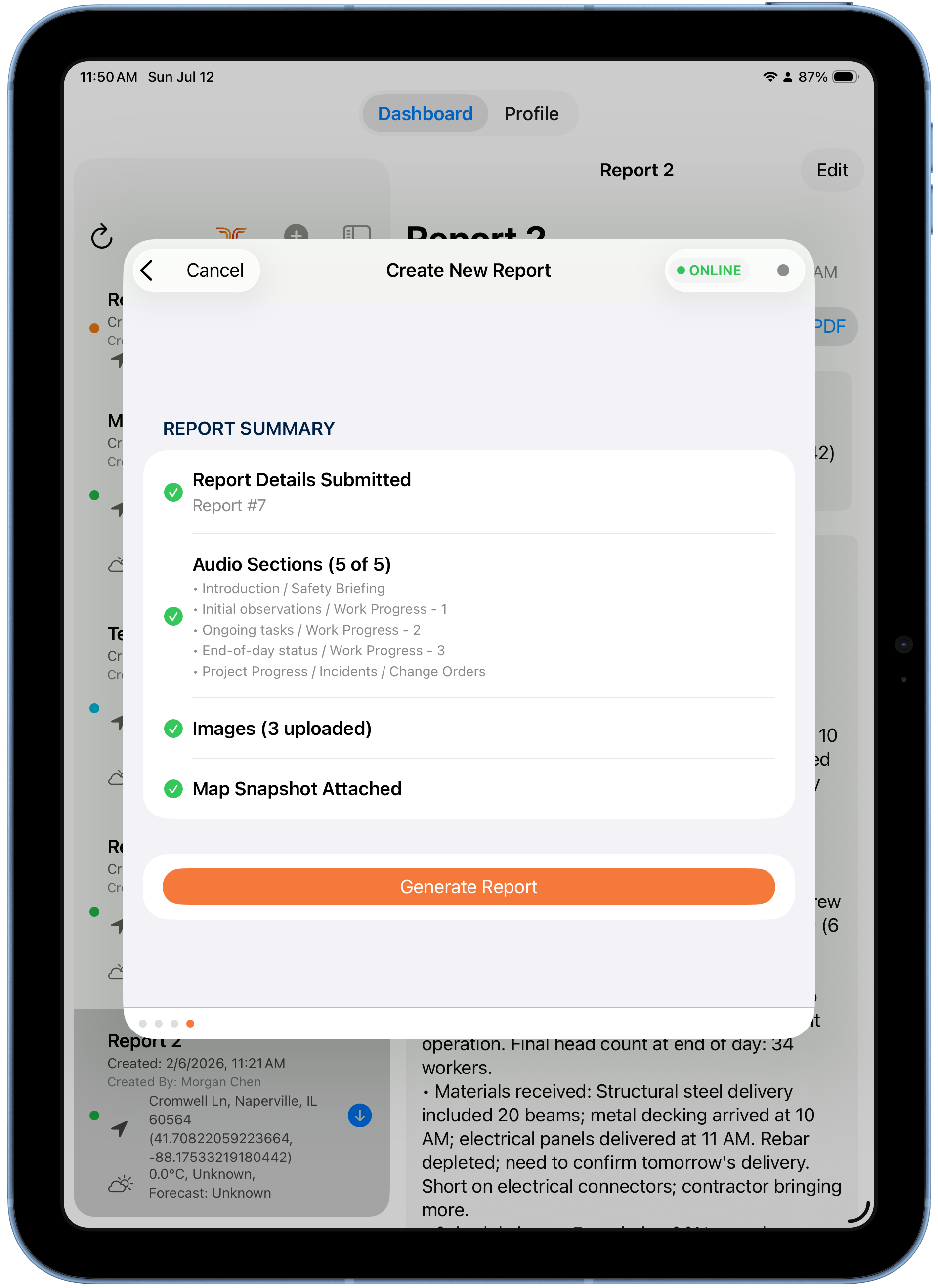
Check the Report Summary screen — it confirms what's included: report details, audio sections (5 of 5), images, and the map snapshot.
-
Tap Generate Report.
-
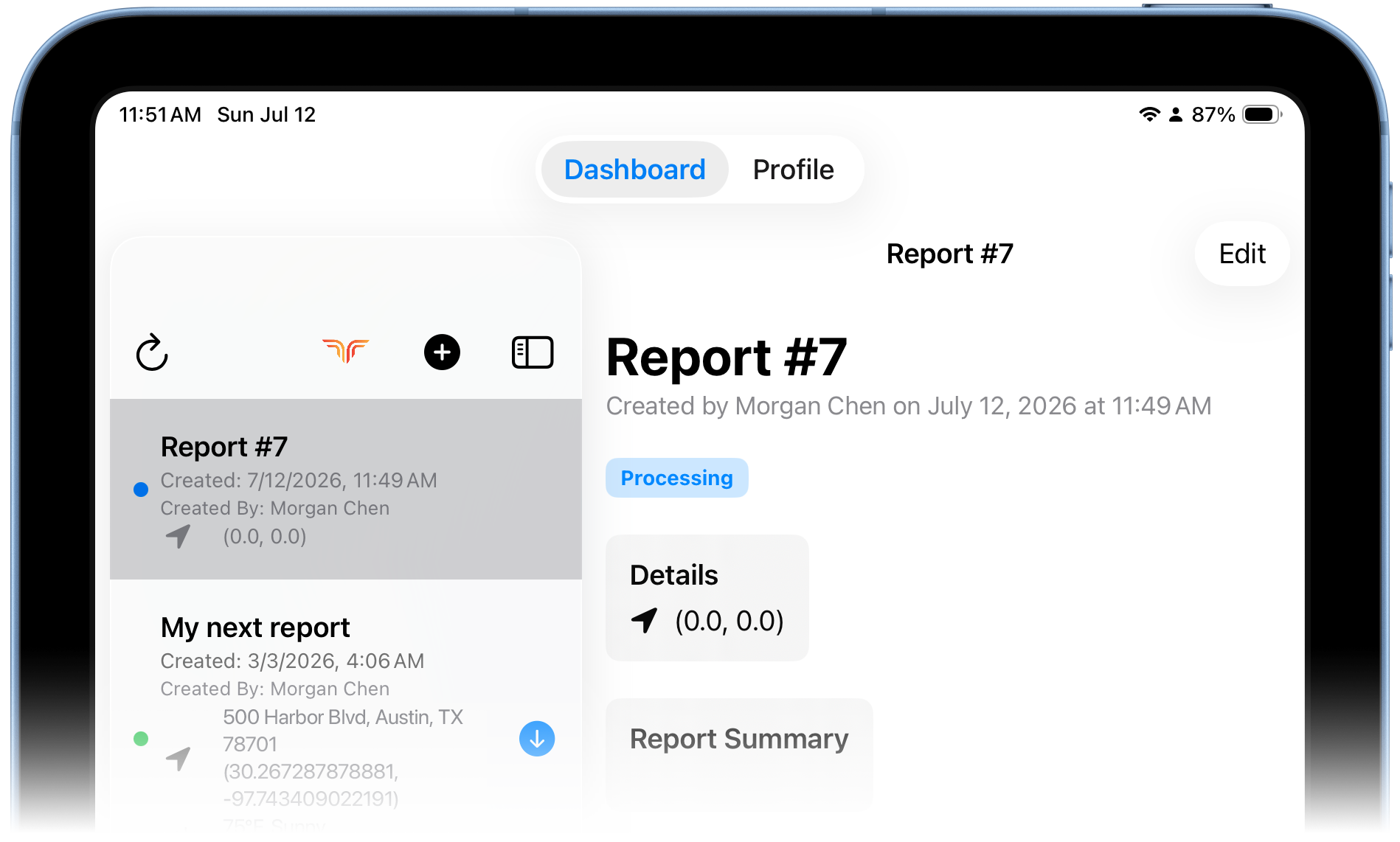
You're returned to the Dashboard. Your new report shows a Processing tag while it's being generated — this takes a few moments.
-
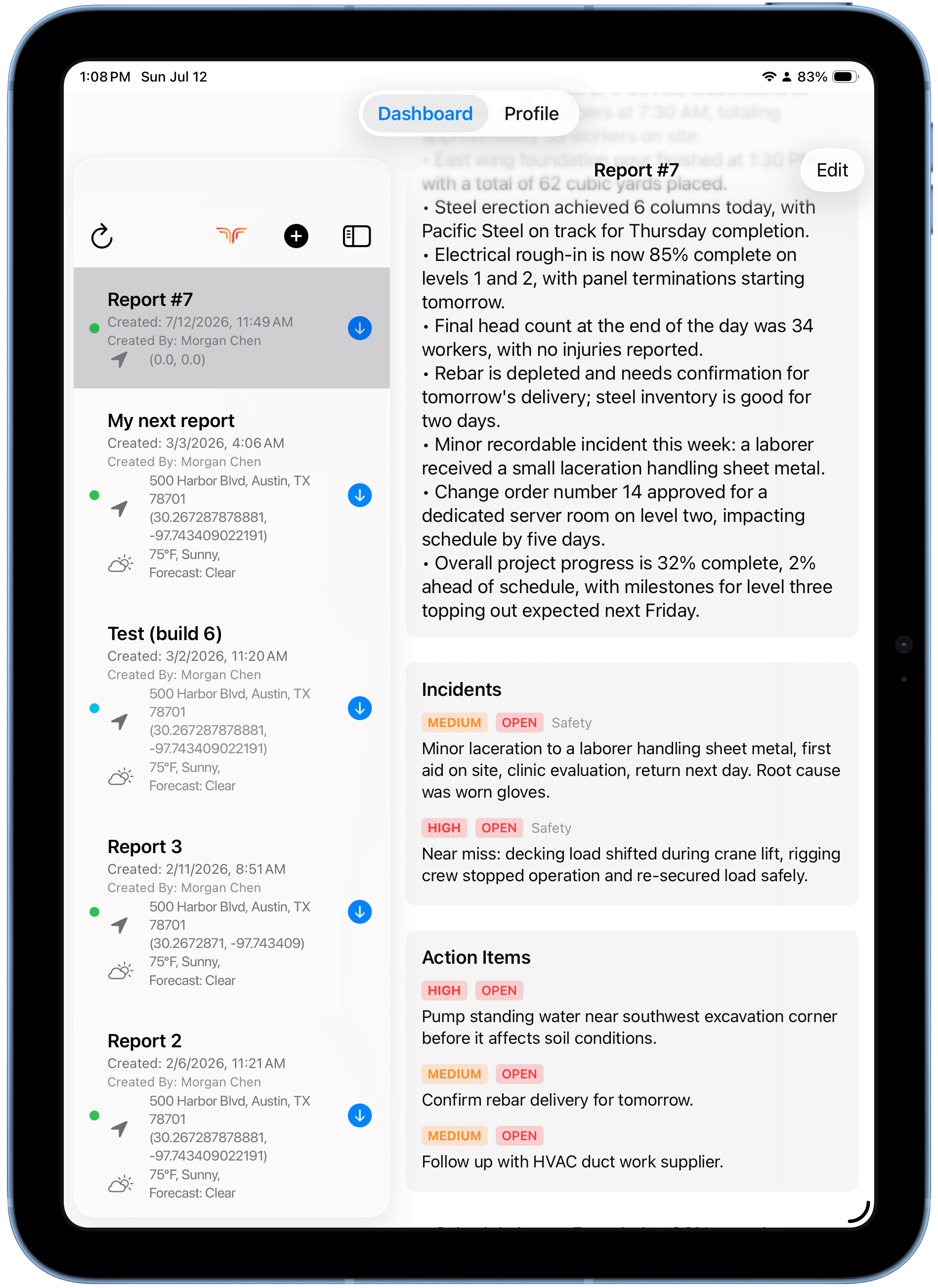
When the tag changes to Completed, open the report to review the generated Report Summary, Incidents, and Action Items — all built from your audio notes.
-
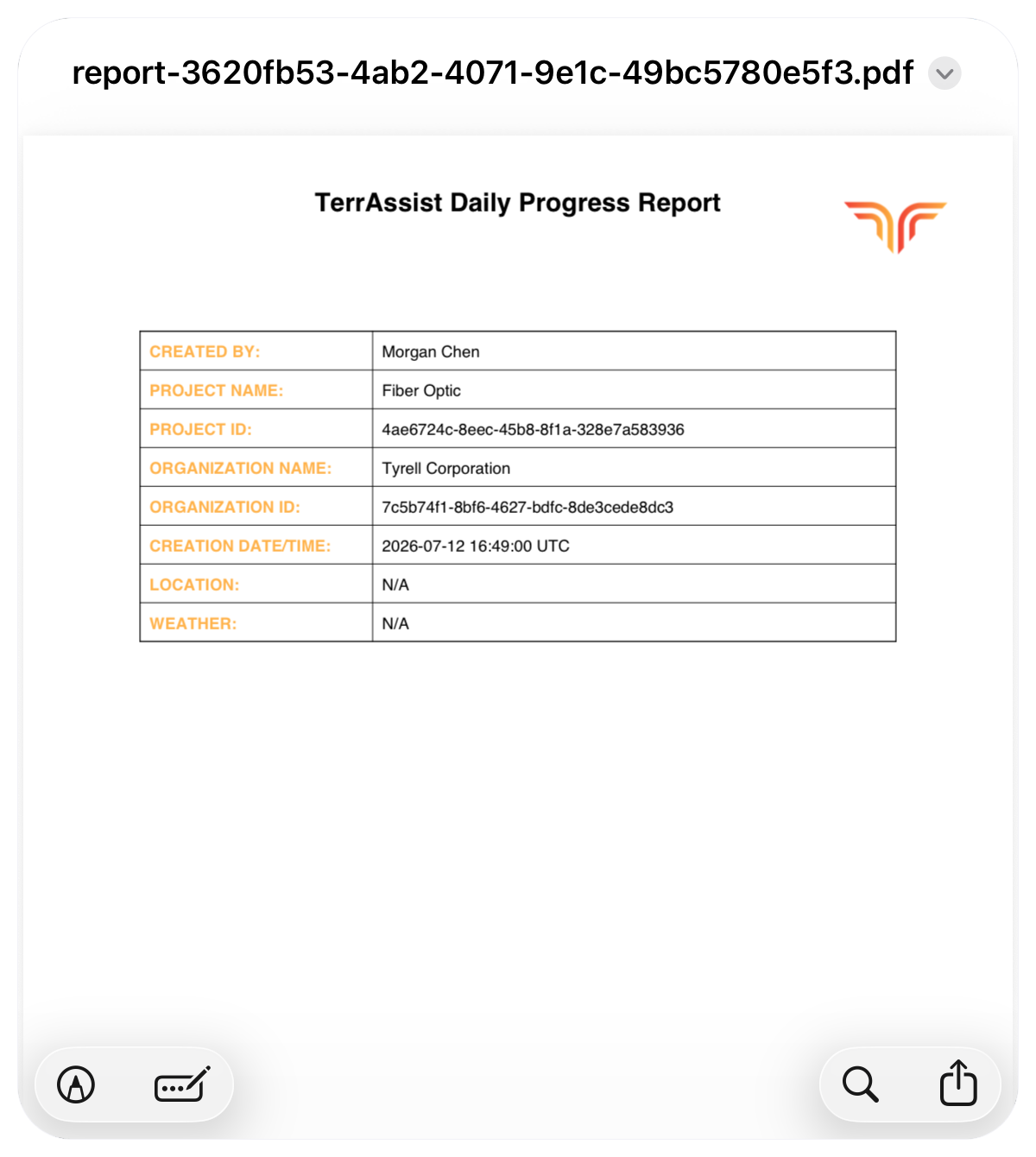
Tap Preview PDF to see the final document.
Review before you finalize
Check that the summary reflects what you said and that photos and the map look right. If something's off, fix it now — see Finalize & share for what happens next.