Create your first report
Create a new field report with a title, location, and map snapshot.
Steps
-
From the Dashboard, tap the + button at the top of the report list.
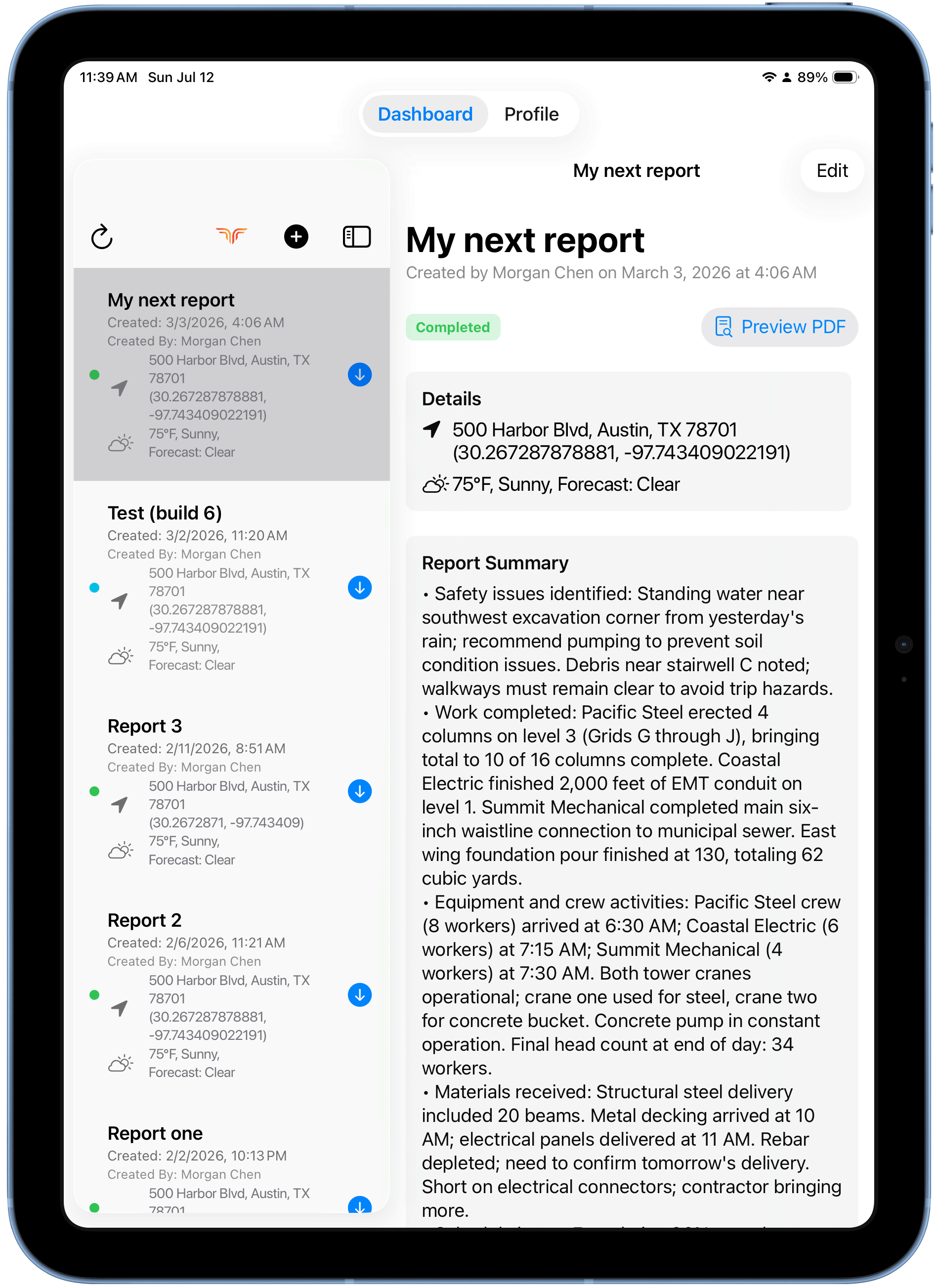
-
The Create New Report screen opens. Tap Select Type next to Report Type and pick your report type — for example, Daily Inspection Report.
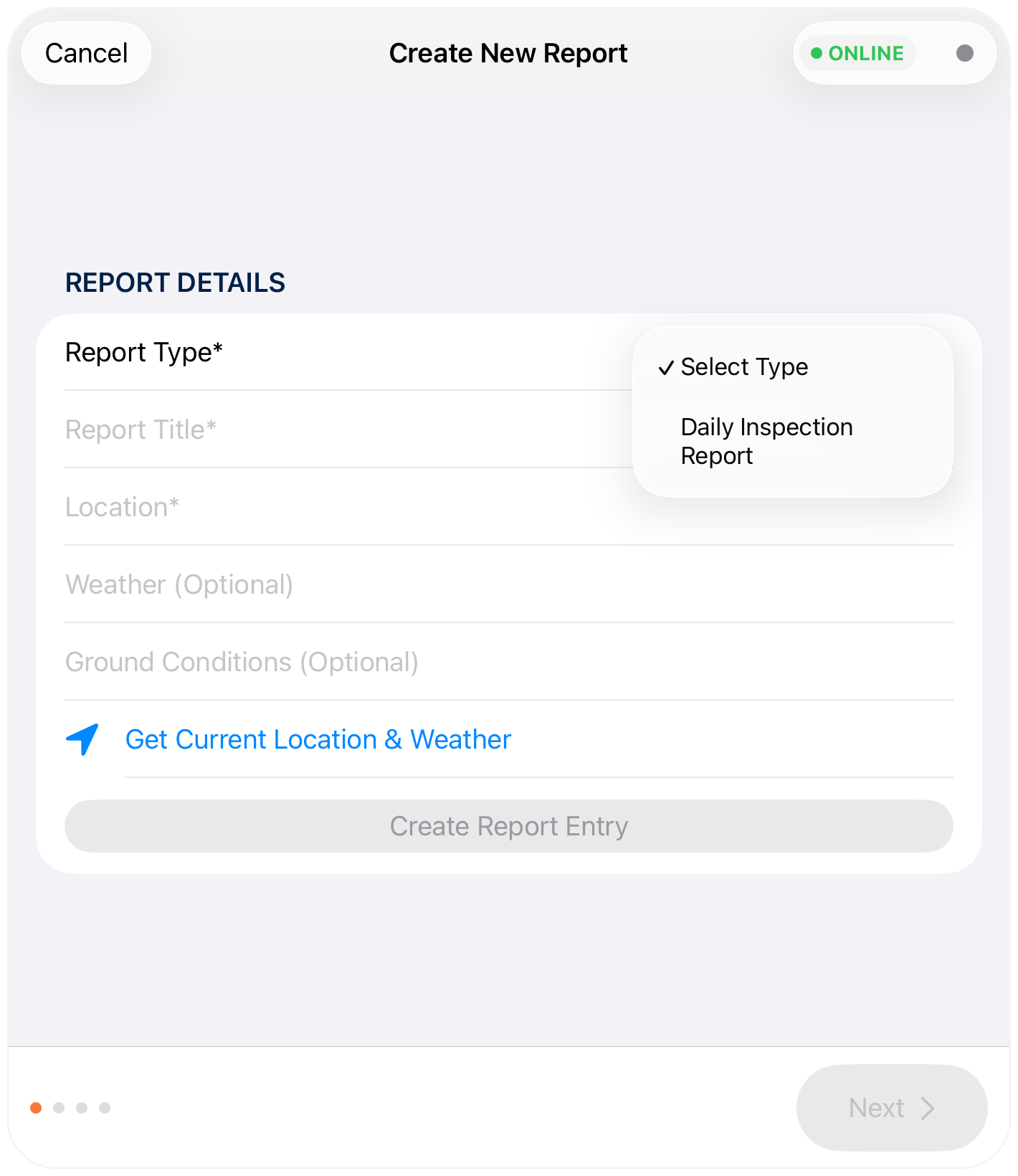
The Workflow field fills in automatically based on the type you chose (e.g.
DAILY_INSPECTION). -
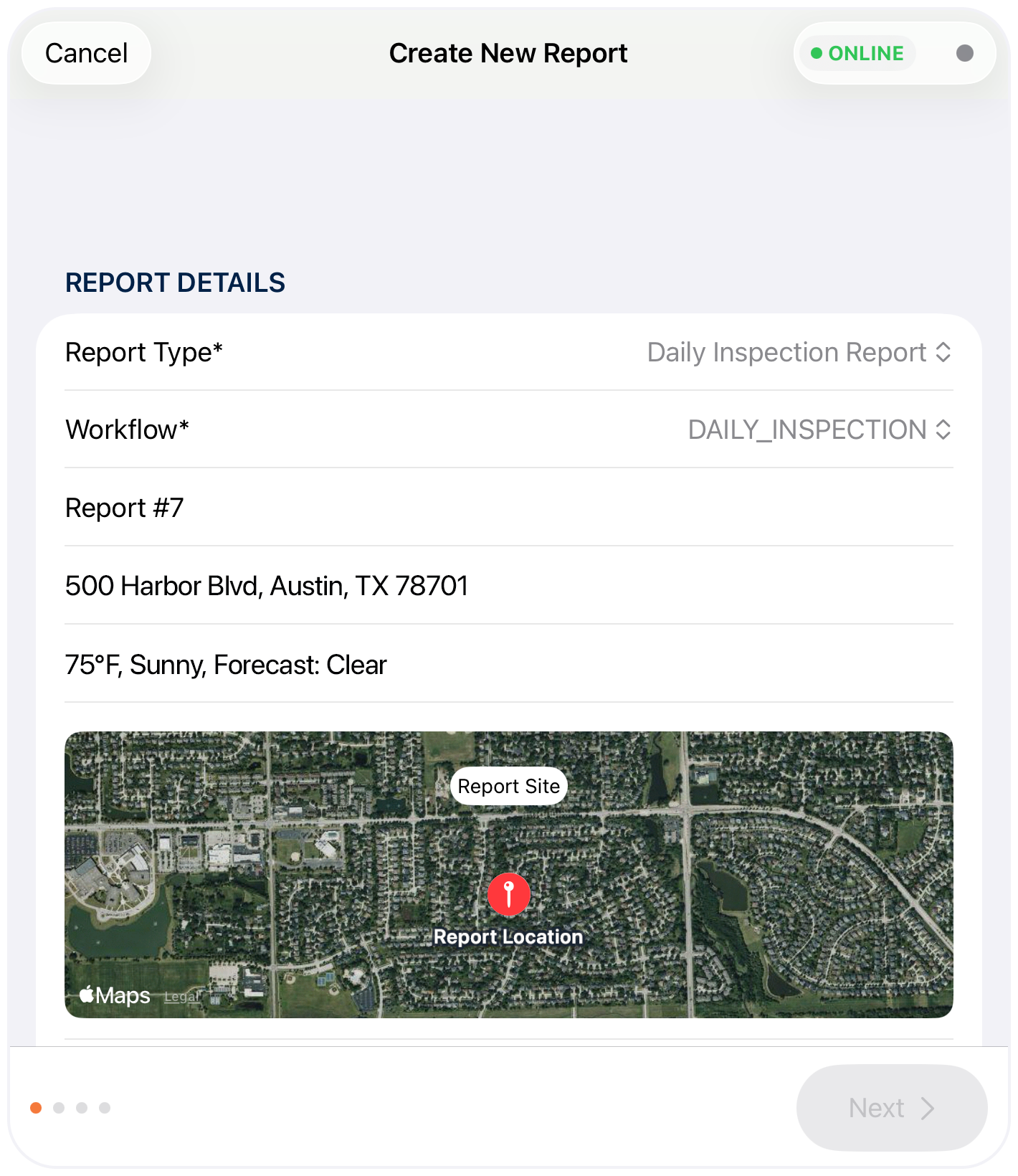
Type a report title — e.g. "Report #7".
-
Tap Get Current Location and Weather. TerrAssist fills in your address, GPS coordinates, and current weather, and shows your position on the map.
Weather data unavailable?
Weather capture is a licensed feature — it may be turned off for your organization. Your report works fine without it. See the FAQ.
-
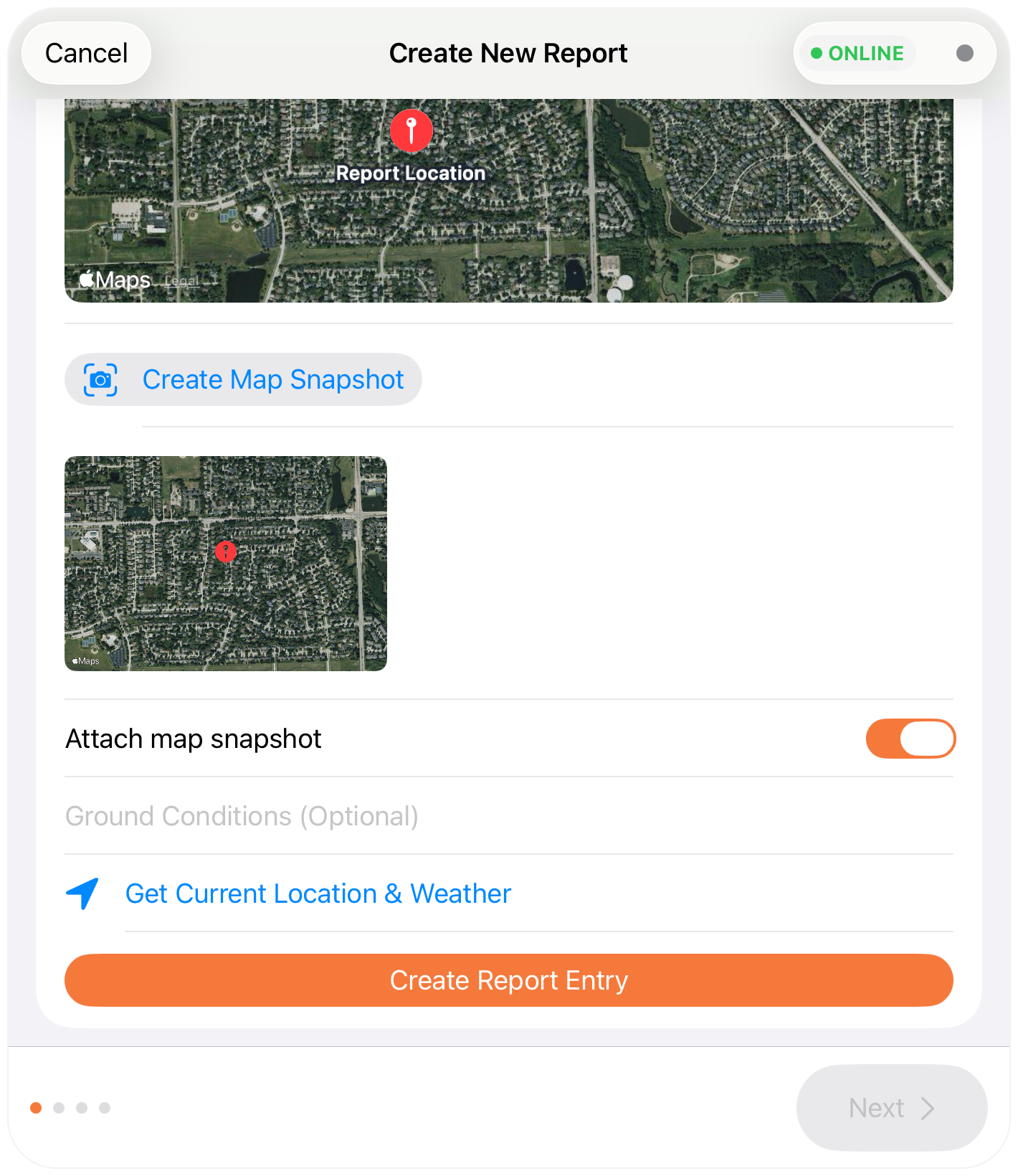
Scroll down and tap Create Map Snapshot, then turn on the Attach map snapshot toggle to include the map image in your report.
-
Tap Create Report Entry. The button changes to Entry Created — tap Next to continue.